One record for everything
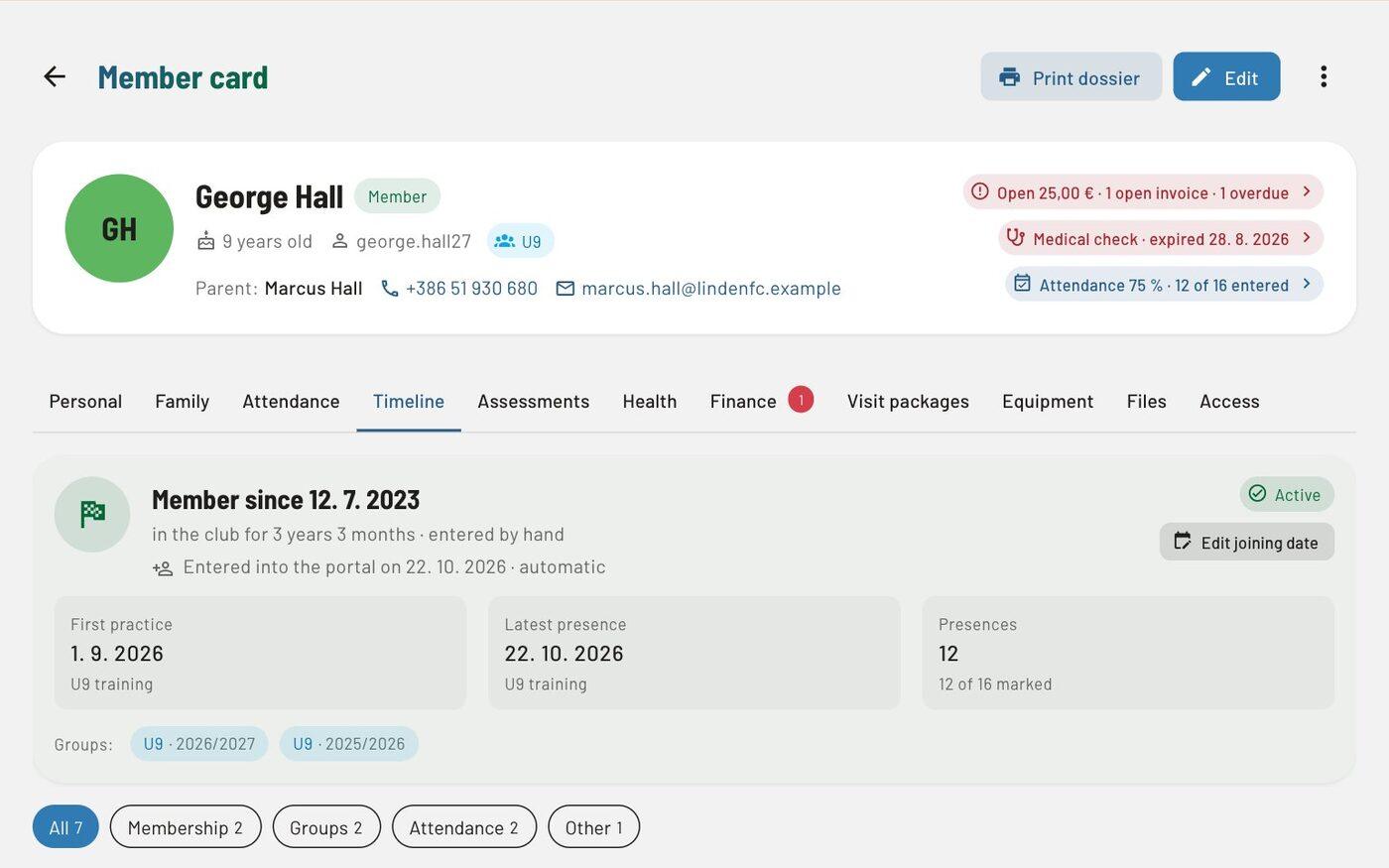
Personal data, both parents, family, groups, attendance, ratings, injuries and invoices. The timeline shows when the member joined and every move in and out of groups.

Members, parents and enrolment
Every member has one record with both parents, groups, attendance and invoices. New members join through an online enrolment form that parents fill in on their phone — no retyping.
In all packages
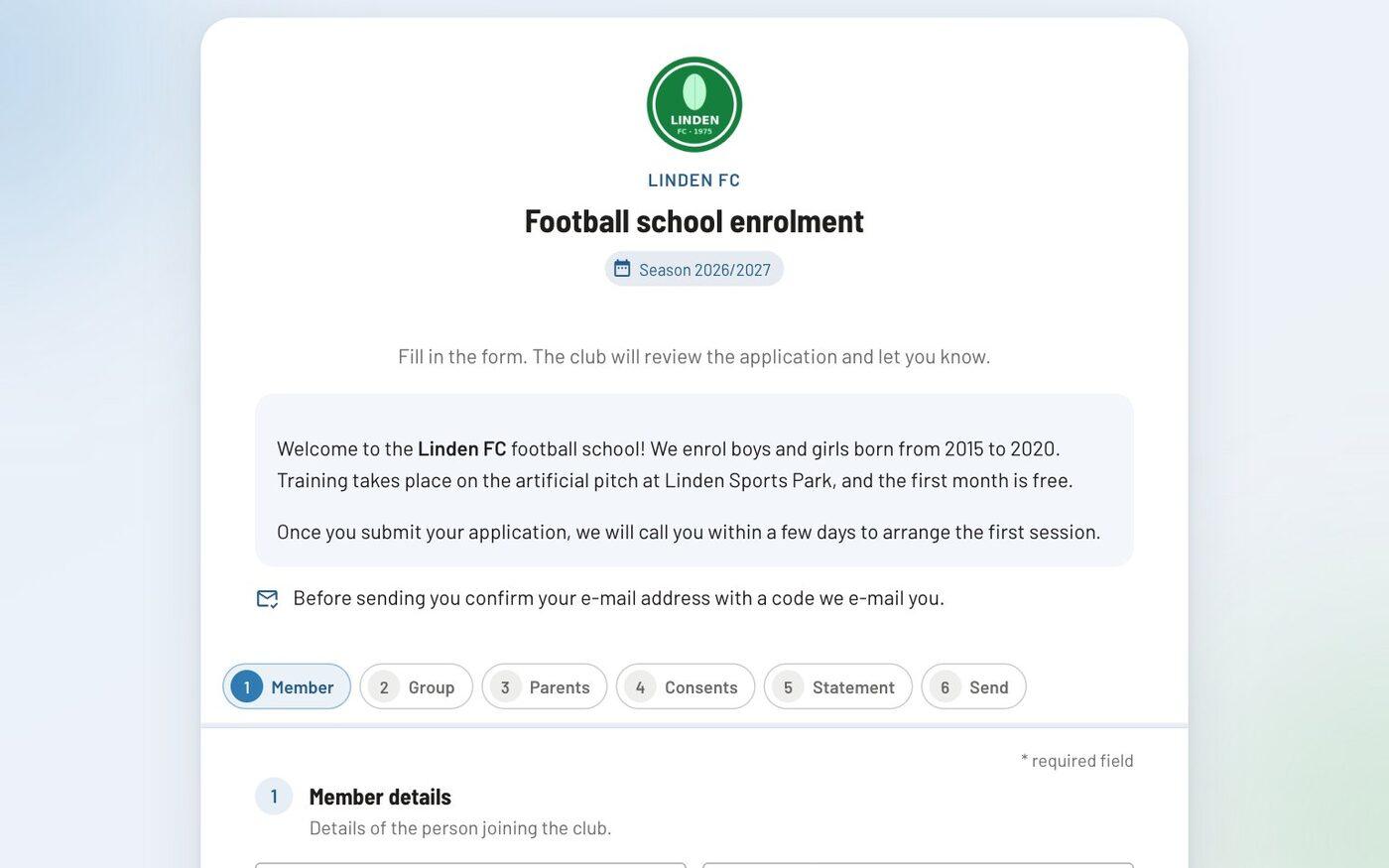
Personal data, both parents, family, groups, attendance, ratings, injuries and invoices. The timeline shows when the member joined and every move in and out of groups.
Several forms, fields of your choice, GDPR consents, confirmation with a code by e-mail or SMS, e-signature and a membership statement. While you edit, “Preview” shows the form as parents see it — on a phone or a computer.
Approve — also several applications at once with “Approve selected” —, reject, ask for more details or put on a waiting list that waits only for the full groups. Clubsman spots duplicate members and places the member in the group on approval.
“Send access” sends a personal link for setting a password. Parents sign in with a code by e-mail that fills six boxes and confirms itself; with several children they pick a profile with one tap. For members without an e-mail address you print a letter with a QR code.
In detail
What users say
The opposite of chaos is called “Spletni portal”. If you want a tidy membership register, a clear training timetable, simple membership-fee billing and an effective way of communicating with players and their parents, then you really need “Spletni portal”. Our children are used to E-asistent. Its brother “Spletni portal” likewise gives every member their own view, and parents are happy to use it. It has never been easier or simpler. If you don’t believe them, call us. We’ll reveal our unique user experience. The support team is top and sorts out everything you need.
Questions
Yes. Import from Excel or CSV comes with a template with drop-down lists and instructions. Before you confirm you see a preview: who is new, who is updated and which data is not valid (e.g. an e-mail address, phone number or date of birth). We help you move from Excel or another program free of charge.
Only those whose role allows it. The administrator has every right, a coach by default the calendar, attendance and their own groups, and a member or parent only their own data. The club can create custom roles (e.g. treasurer or accountant). The server checks the rights on every request.
Yes. You export members, invoices and reports to Excel, accounting data for your accountant, and for a single member you can prepare a personal data export (GDPR). Members can export their own data themselves.
Related
Try every feature in the trial environment with made-up data — as an administrator, coach, member or parent.